 openstatus
How to Self-Host openstatus
Problem
Section titled “Problem”You want to run openstatus on your own infrastructure instead of using the hosted service. This gives you full control over your data, customization options, and the ability to monitor internal services not accessible from the public internet.
Solution
Section titled “Solution”openstatus provides a Docker Compose setup that makes self-hosting straightforward. This guide walks you through deploying all necessary services and configuring your self-hosted instance.
Prerequisites
Section titled “Prerequisites”- Docker and Docker Compose installed
- Basic understanding of Docker and containerization
- Command line experience
- Git installed
- Node.js and pnpm (for database migrations)
Known limitations
Section titled “Known limitations”Self-hosting openstatus currently has these constraints:
- It only works with private locations. You have to deploy our probes to the cloud provider of your choice.
Step-by-step guide
Section titled “Step-by-step guide”This guide is divided into three parts: launching the services, setting up the database and analytics, and configuring the application through the UI.
Part 1: Initial Setup and Service Launch
Section titled “Part 1: Initial Setup and Service Launch”-
Clone the Repository
Get the latest version of openstatus:
Terminal window git clone https://github.com/openstatushq/openstatuscd openstatus -
Configure Your Environment
Copy the example environment file. This file will hold all your configuration variables.
Terminal window cp .env.docker.example .env.dockerOpen
.env.dockerin a text editor. At a minimum, you must set a value forAUTH_SECRETfor authentication to work. For a complete setup, review the file for other variables like OAuth providers or email services. -
Build and Start Services
Use Docker Compose to build and run all openstatus services in the background.
Terminal window export DOCKER_BUILDKIT=1docker compose up -dYou can check the status of the services with
docker compose ps. It might take a few minutes for all services to be healthy.
Part 2: Database and Analytics Setup
Section titled “Part 2: Database and Analytics Setup”-
Run Database Migrations
The database container starts with an empty database. You must run migrations to set up the required schema.
Terminal window # Make sure you are in the root of the openstatus projectcd packages/dbpnpm installpnpm migratecd ../.. # Return to the project root -
Deploy Local Tinybird Analytics
Tinybird is used for analytics. Deploy the local datasources, pipes, and endpoints.
Terminal window # Make sure you are in the root of the openstatus projectcd packages/tinybirdpnpm installtb --local deploycd ../.. # Return to the project root -
Configure Tinybird API Key
You need to get your local Tinybird admin token and add it to your environment file.
Terminal window cd packages/tinybirdtb --local open # This opens the Tinybird UI in your browserIn the Tinybird UI, find and copy your admin token. Then, add it to your
.env.dockerfile in the root of the project:TINY_BIRD_API_KEY="your-tinybird-admin-token"After adding the token, restart your services for the changes to take effect:
Terminal window # Make sure you are in the root of the openstatus projectdocker compose restart
Part 3: Application Configuration
Section titled “Part 3: Application Configuration”Now that the services are running, you can access the dashboard and perform the final setup steps.
- Dashboard:
http://localhost:3002 - Status Pages:
http://localhost:3003
-
Create a Workspace and Set Limits
- Navigate to the dashboard at
http://localhost:3002. - Sign up and create a new workspace.
- Because this is a self-hosted instance, you need to manually set the feature limits for your workspace directly in the database.
The following command updates the limits for the workspace with
id = 1. If your workspace has a different ID, change theWHERE id = 1part of the command.Terminal window curl -X POST http://localhost:8080/ -H "Content-Type: application/json" \-d '{"statements":["UPDATE workspace SET limits = '\''{\\"monitors\\":100,\\"periodicity\\":[\\"30s\\",\\"1m\\",\\"5m\\",\\"10m\\",\\"30m\\",\\"1h\\"],\\"multi-region\\":true,\\"data-retention\\":\\"24 months\\",\\"status-pages\\":20,\\"maintenance\\":true,\\"status-subscribers\\":true,\\"custom-domain\\":true,\\"password-protection\\":true,\\"white-label\\":true,\\"notifications\\":true,\\"sms\\":true,\\"pagerduty\\":true,\\"notification-channels\\":50,\\"members\\":\\"Unlimited\\",\\"audit-log\\":true,\\"private-locations\\":true}'\'' WHERE id = 1"]}'You can find your workspace ID by inspecting the database with a command like
curl -X POST http://localhost:8080/ -H "Content-Type: application/json" -d '{"statements":["SELECT id, name FROM workspace"]}'. - Navigate to the dashboard at
-
Deploy a Private Location
The self-hosted version relies on private locations to perform checks.
- In the dashboard, navigate to Settings -> Private Locations and create a new one.
- Copy the generated
OPENSTATUS_KEY. - Deploy the private location probe to your infrastructure using the Docker image
ghcr.io/openstatushq/private-location:latest. - When deploying, you must provide two environment variables to the container:
OPENSTATUS_KEY: The key you just copied.OPENSTATUS_INGEST_URL: The URL of your self-hosted server’s API endpoint (e.g.,http://<your-server-ip-or-domain>:3001).
- For a detailed guide on deploying a private location, see Deploy Private Locations on Cloudflare Containers.
-
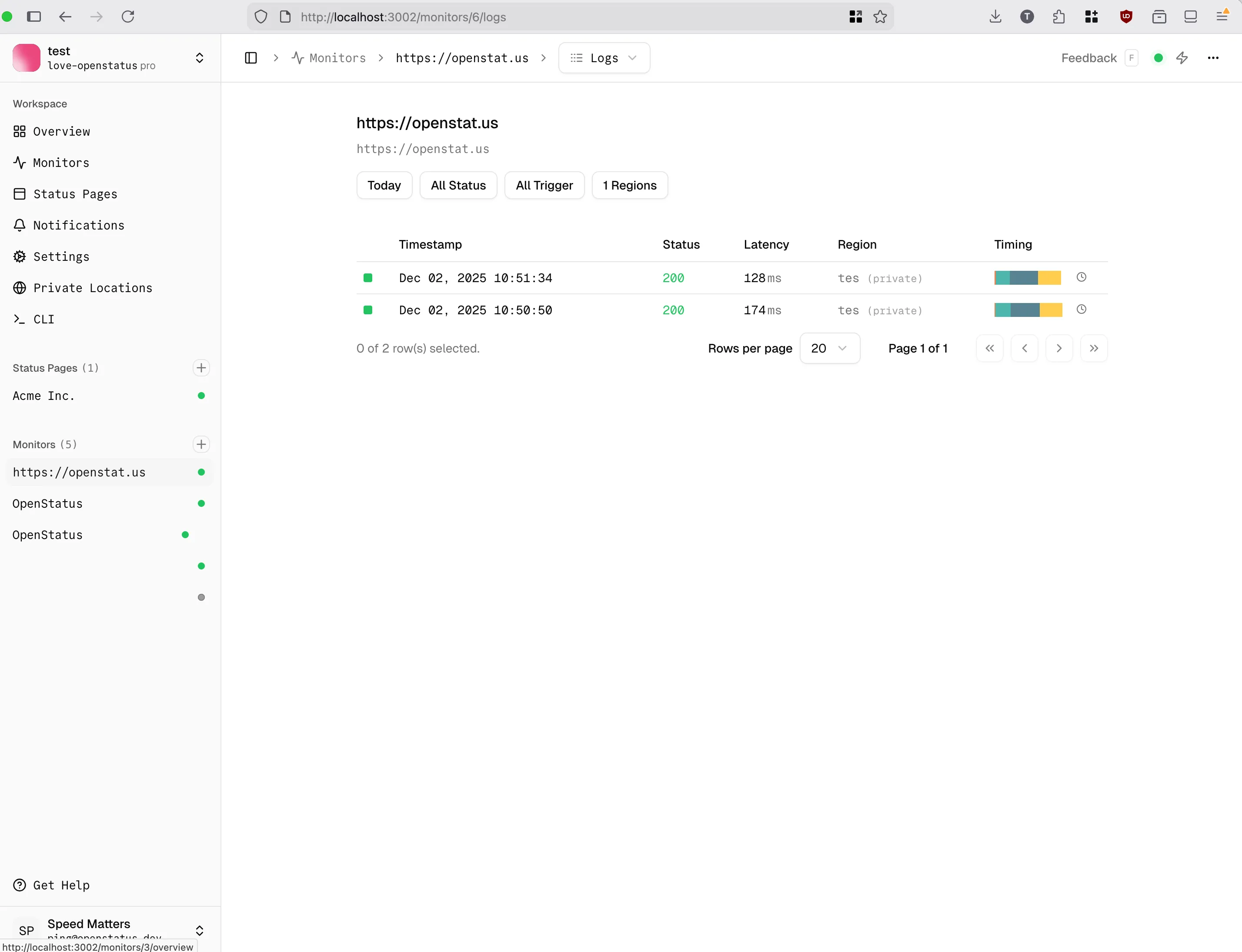
Create Monitors
You’re all set! You can now create monitors in the dashboard. They will be checked by the private location you deployed.
Service architecture
Section titled “Service architecture”openstatus consists of multiple services running together:
| Service | Port | Purpose |
|---|---|---|
| workflows | 3000 | Background jobs and scheduled tasks |
| server | 3001 | API backend (tRPC) |
| dashboard | 3002 | Admin interface for configuration |
| status-page | 3003 | Public status pages |
| private-location | 8081 | Monitoring agent for checks |
| libsql | 8080 | Database (HTTP) |
| libsql | 5001 | Database (gRPC) |
| tinybird-local | 7181 | Analytics and metrics |
What you’ve accomplished
Section titled “What you’ve accomplished”Congratulations! You’ve successfully:
- ✅ Deployed openstatus on your own infrastructure
- ✅ Configured all required services
- ✅ Set up a private location for monitoring
- ✅ Created your first self-hosted monitor
Troubleshooting
Section titled “Troubleshooting”Containers won’t start: Check Docker logs with docker compose logs [service-name]
Database migrations fail: Ensure you’re in the correct directory and have pnpm installed
Private location not connecting: Verify the OPENSTATUS_KEY and OPENSTATUS_INGEST_URL are correct
Tinybird issues: Make sure the Tinybird token is correctly set in .env.docker
Next steps
Section titled “Next steps”- Deploy Private Locations - Set up monitoring from multiple regions
- Create Monitors - Start monitoring your services
- Configure Notifications - Get alerted on issues
Additional resources
Section titled “Additional resources”- Docker Compose file - Review the complete configuration
- Private Location Reference - Technical specifications
- Join our Discord - Get help from the community